Apple renamed its desktop operating system from OS X to macOS with the release of macOS Sierra in 2016. Since then, Mac users have been getting their software updates through the Mac App Store. Whether performing a clean install or doing an upgrade, users need to connect to the Mac App Store to download the macOS installation files.
This online approach works for most users, but not for everyone. Sometimes you may come across situations where you need to install macOS offline. For example, if your Mac is stuck at the boot screen, you may have no option but to use an offline installer or reach out to support. An offline installer is also useful for archiving macOS for future use, or if you’re on a metered plan, or a system administrator installing the OS on multiple machines where downloading large files becomes a problem. In such cases, you’ll need an offline installation method, and this article explains the available options.
Here is how you can do macOS installation offline.
Important
Please note that during installation, after installation, or when setting up new hardware, you may still need an internet connection to sign in, activate services, or complete your configuration, depending on your needs.
Step 1: Download macOS offline Installer
Apple provides public and direct links for most macOS versions, starting from macOS Lion up to Tahoe, in DMG and PKG format. After downloading, you have to extract the macOS app installer from the image file by double-clicking it, and that is the macOS offline or full-size installer.
It’s a bit tricky to download macOS High Sierra, Mojave, and Catalina. You’ll need to use a third-party script (mentioned below) to get these versions, but the script still downloads macOS directly from Apple’s servers, so you don’t have to worry about security.
Download the gibMacOS script from this link and extract it to your Mac. From the extracted folder, locate and run the script called gibMacOS.command — it will open the Terminal as shown below. You may want to install the latest version of Python if it has not been installed on your Mac yet. Post install, wait for the gibMacOS script download the current macOS catalog from Apple server.
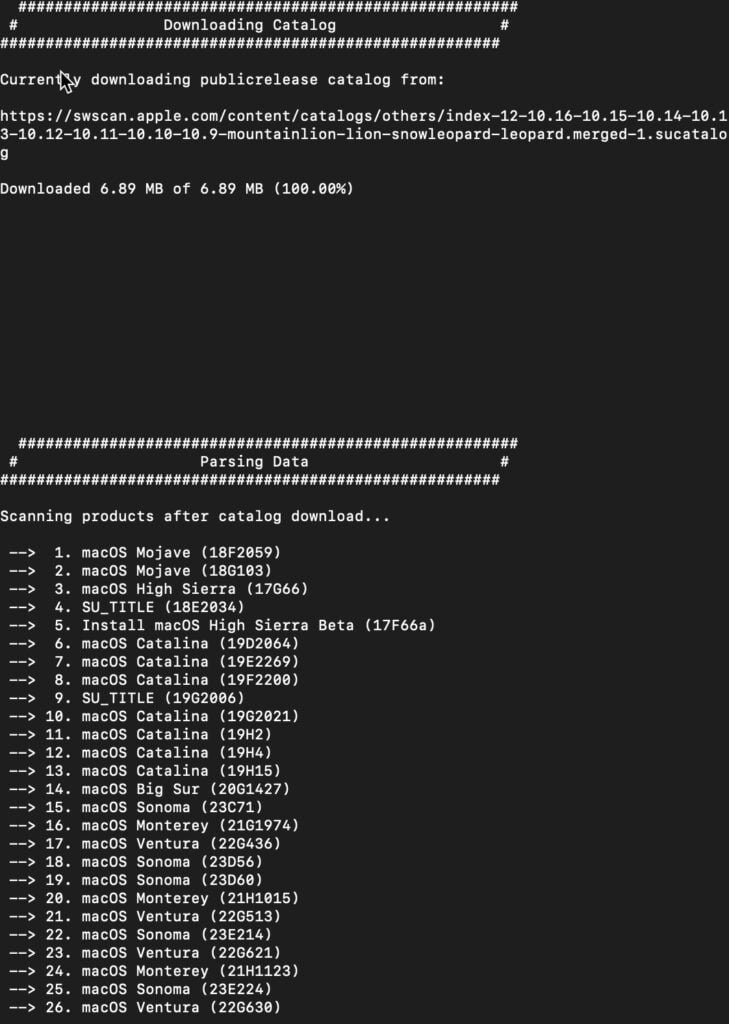
Once the script fetches the macOS download catalog from Apple and lists the available versions, choose the number that corresponds to the macOS version you want and press the Return/Enter key. You can use this script to download macOS Tahoe 26, Sequoia, Sonoma 14, Ventura 13, Monterey 12, Big Sur 11, Catalina (10.15), Mojave (10.14), and High Sierra (10.13.6). After you select a version, a new folder named “macOS Downloads” will appear inside the “gibMacOS-master” directory, and the download will begin in the command-line interface.
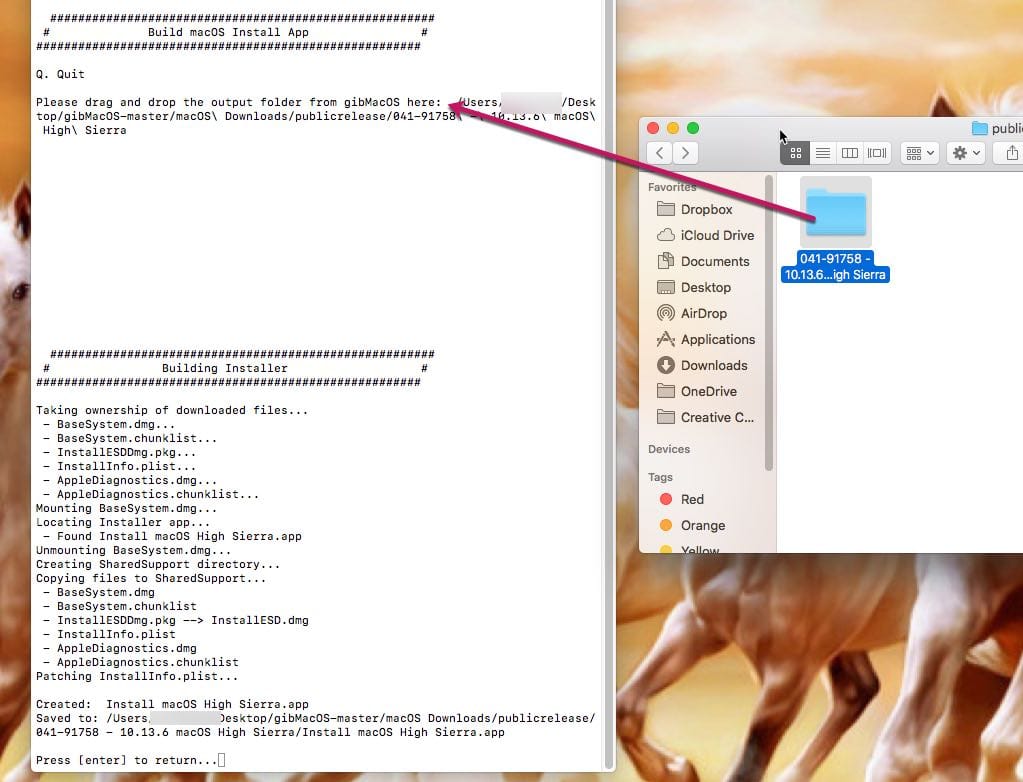
The OS gets downloaded as parts, PKGs, DMGs and other files. For macOS versions up-to Big Sur, you need to use another script “BuildmacOSInstallApp.command” in the main folder to join all the downloads and make the full macOS installer app. All you need is to drag and drop the downloaded macOS folder to the terminal window. The script will build the offline installer and save it to the same folder.
You don’t need to use the second script if your choice is macOS Big Sur. Because, for macOS Big Sur you get a full-size installer from Apple in PKG format. Double-click and open the InstallAssistant.PKG to save the “Install macOS Big Sur.app” to the Applications folder.
Step 2: Make a macOS bootable USB installer
It is possible to create a backup macOS installer on a DVD or USB drive but later is the best choice. Most of the Macs these days don’t have DVD slots, and the installation through a disc is very slow. Hence we discuss only about making macOS recovery installer on a USB disc. For this you need a Mac and a USB pen drive of at least 8 GB space, and a third-party app called DiskMaker.
- First, download a copy of Disk Maker from the official website.
- Choose a version as per your requirement. For example, if you want make USB installer for macOS Catalina 10.15, download Disk Maker X 9.
- I use a MacBook Pro with High Sierra. Hence, I’m downloading disk maker X 7.
- The next step is to download full macOS installer from the App Store to your Applications folder.
- Run Disk Maker DMG installer and copy the app to the Applications.
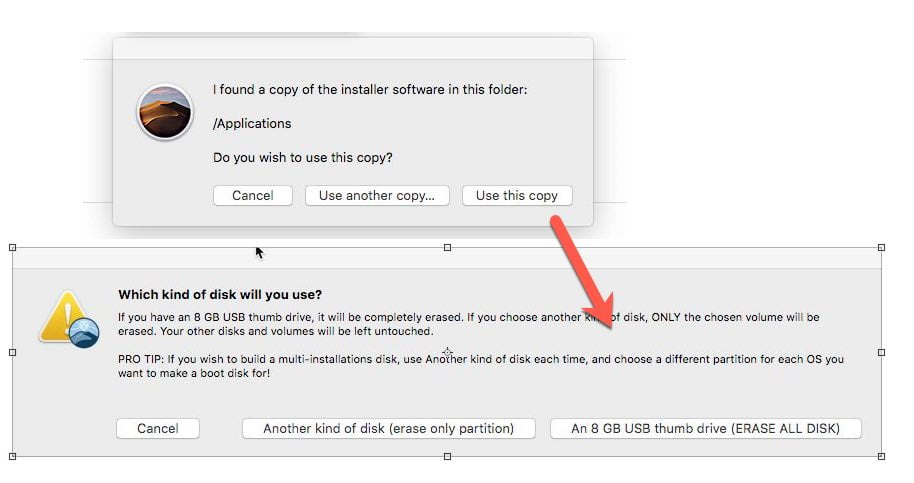
- The application will automatically detect the downloaded macOS as shown in the screenshot. Select “Use this Copy” if you would like to proceed with it.
- Next is setting the USB pen drive for creating the bootable installer. Choose the third option ” An 8 GB USB Thumb drive.”
- The app will list all drives in your system. Pick the one you would like use as macOS USB installer.
- Ignore the warning message and proceed to Erase and Create macOS USB disk. Don’t forget to provide your admin password when it prompts.
- Keep checking notifications tab for progress. When it completes you will find Install macOS Mojave (or High Sierra) mounted to your desktop as a USB disk.
- That’s your backup. Unmount and keep the USB installer to a safe place.
Unfortunately, the above app is not compatible with macOS Big Sur 11 and above. Check the instructions on Apple website, the manual method to make macOS offline USB installer.
What is the alternative if I don’t have usable Mac at the moment?
This method is applicable when you have a Mac, and the internet recovery fails. But think about a situation when your only Mac stops to boot, and you don’t have USB installer or TimeMachine backup! Downloading MacOS DMG file might save you. If you have a macOS DMG, you can create bootable USB disk from a Windows PC — use a software like TransMac or Balena Etcher for this purpose.
Step 3: Do a fresh install of macOS in semi-offline mode using the USB disk
As said earlier, you could use the macOS USB installer to do a clean install or restore it upon a boot failure. Just connect the USB disk and press the Option/Alt Key when you hear the boot sound. The Mac will then display all the startup disks available.
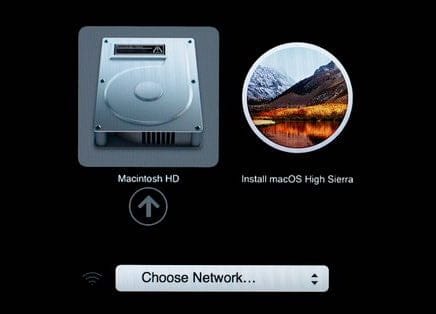
Pick the USB drive starting with the label “Install macOS” and follow on-screen instructions to complete the installation. If you need, use the Disk Utility to format the drive for doing a clean install.
Hey thanks so much for this article!
This works well!
Saved my friends MacBook Air! – The mac os built-in internet recovery was taking like 8 hours, but with this way we complete in about one hour.
Works great, but…
When booting up and presented with startup manager, I’m still forced to select a network after selecting my usb drive. Argh. Stuck.
Any advice? 2018 MacBook Air
AUTHENTICATION NEEDED. Need to authenticate as an administrator to change the boot security settings. Installer does not recognize password; needed to install from an external disk. What to do.
Any chance on doing this from windows? i already “wiped” my HDD without knowing that i will need an wireless internet connection (i have lan but i use PPOE and apple doesn’t give that option)
Can I download InstallESB.dmg from somehere? any direct link?
Hello,
Does it requires to format the whole USB Key, or it is possible to install the file in a partition on the Key (will the USB Key still be recognized as a boot disc)?
Thank you,
Stephane, Geneva – Switzerland
Hi all,
I downloaded Lion from app store but I couldn’t locate the setup file. Where is it?